

ENGLISH LEARNING GUIDE
How to use Anki for English vocabulary: import flashcards from a CSV
Anki is a flashcard app that shows each card again around the time you are likely to forget it. This guide shows how to import English vocabulary flashcards from a CSV file, get the field mapping right and study the cards, with real Anki screenshots.
Short answer: In Anki on your computer, open the CSV file with your vocabulary cards through File → Import. Choose the Basic note type, choose a deck and map the fields as Front → column 1, Back → column 2. After importing, click the deck and Study Now: read the word, recall its meaning, show the answer and rate how well you remembered it. Scenelex creates the CSV from the subtitles of a video you watched.
What do you need?
You need Anki for desktop (free for Windows, macOS and Linux), a Scenelex account and at least one word list. Create the list from Netflix or YouTube subtitles, or from English text you paste.
Limits to know: the Anki export is a text-based CSV file. It contains no audio, video clips or images, and it is not a ready-made Anki package (.apkg). It works one way: your answers in Anki are not sent back to Scenelex.
The screenshots show Anki and Scenelex in Turkish. In English Anki the same rows are labelled Front, Back and Tags.
Import vocabulary flashcards into Anki in 5 steps
1. Download your word list as Anki (.csv)
Open the list in Scenelex and choose Anki (.csv) from the Export menu (on phones it shows only a download icon). The export follows the filters you have selected: levels, search and learning status. To export only words you have not learned yet, select Still learning first. The file is named after the list title and its levels.
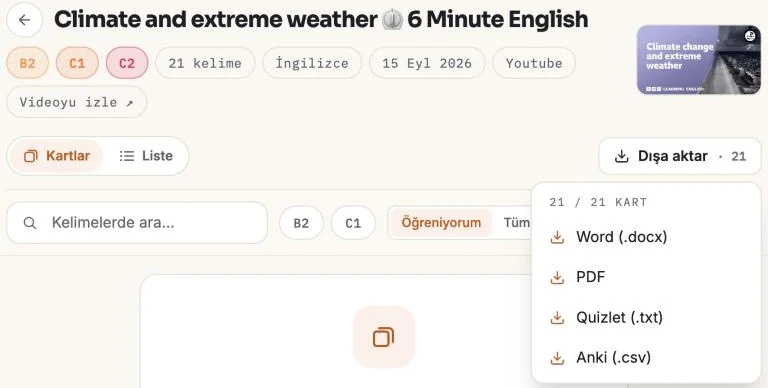
You do not need to open and re-save the file in Excel or Numbers first. Doing so can change its format and characters; import it into Anki directly.
2. Open File → Import in Anki
Click Import File on Anki's main screen, or use File → Import, and choose the CSV. Double-clicking the file may open it in a spreadsheet app instead of Anki.
In the File section, the separator is set to Comma and Allow HTML in fields is on. The first lines of the file tell Anki these settings, so leave them as they are. The preview shows the 1: Front and 2: Back columns (in Turkish, “Ön yüz” and “Arka yüz”).
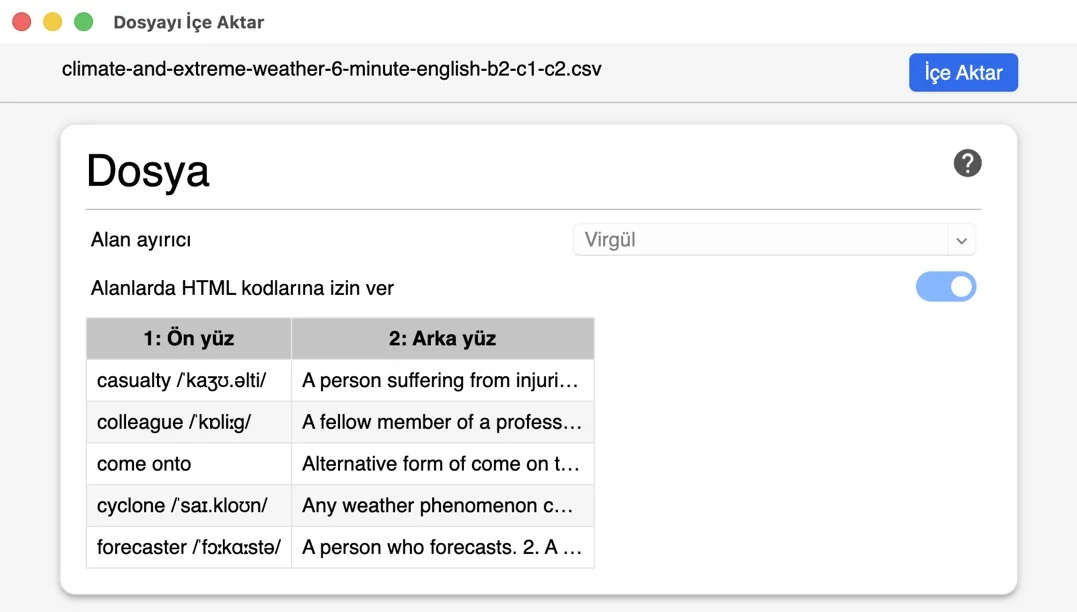
3. Choose the note type and deck
Choose Basic as the note type (“Temel” in Turkish), which creates one card per word. The Deck is where the cards go; the example uses Default in an empty collection. To keep your vocabulary separate, click Create Deck on the main screen first and select it here. You can also add a tag such as the list name under Tag all notes.
4. Check the field mapping
Do not skip this step. The mapping should be Front → 1, Back → 2 and Tags → (Nothing).
The automatic mapping may differ. Before importing, check all three rows and adjust the dropdowns if needed. In the Turkish screenshot below, “Ön” means Front, “Geri” means Back and “Etiketler” means Tags.
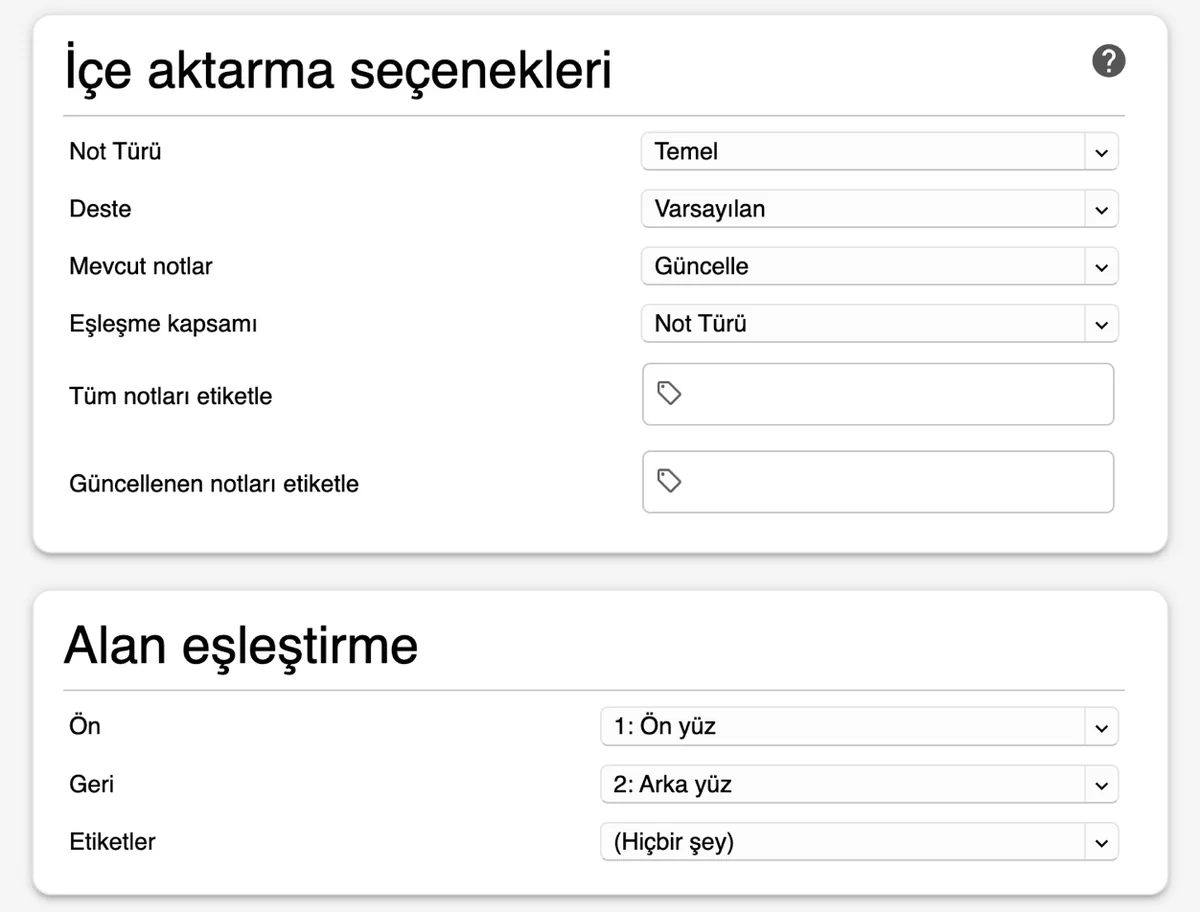
5. Import and check a few cards
Click Import at the top right. The summary shows how many notes the file contained and how many were added or updated; the example list had 21 words. Use Browse to confirm that the Back field of a few cards is filled in.
What is on the front and back of each card?
The front shows the word and, when available, its pronunciation (IPA). Phrasal verbs such as come onto may have no pronunciation. The back shows the main meaning in bold, numbered other meanings, the word type and CEFR level, and, when available, synonyms, verb forms and common word combinations, followed by an example sentence and a From the scene line. These labels follow your Scenelex interface language; meanings and examples are in English.
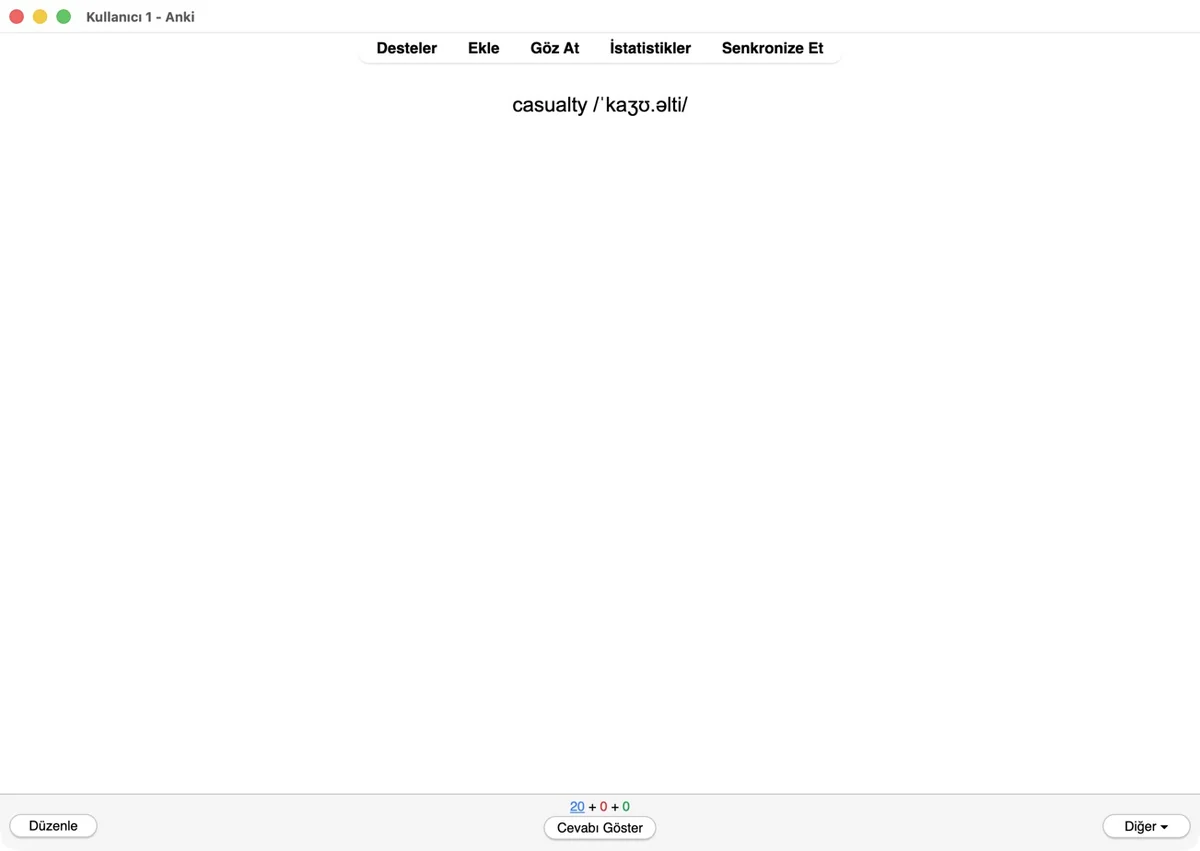
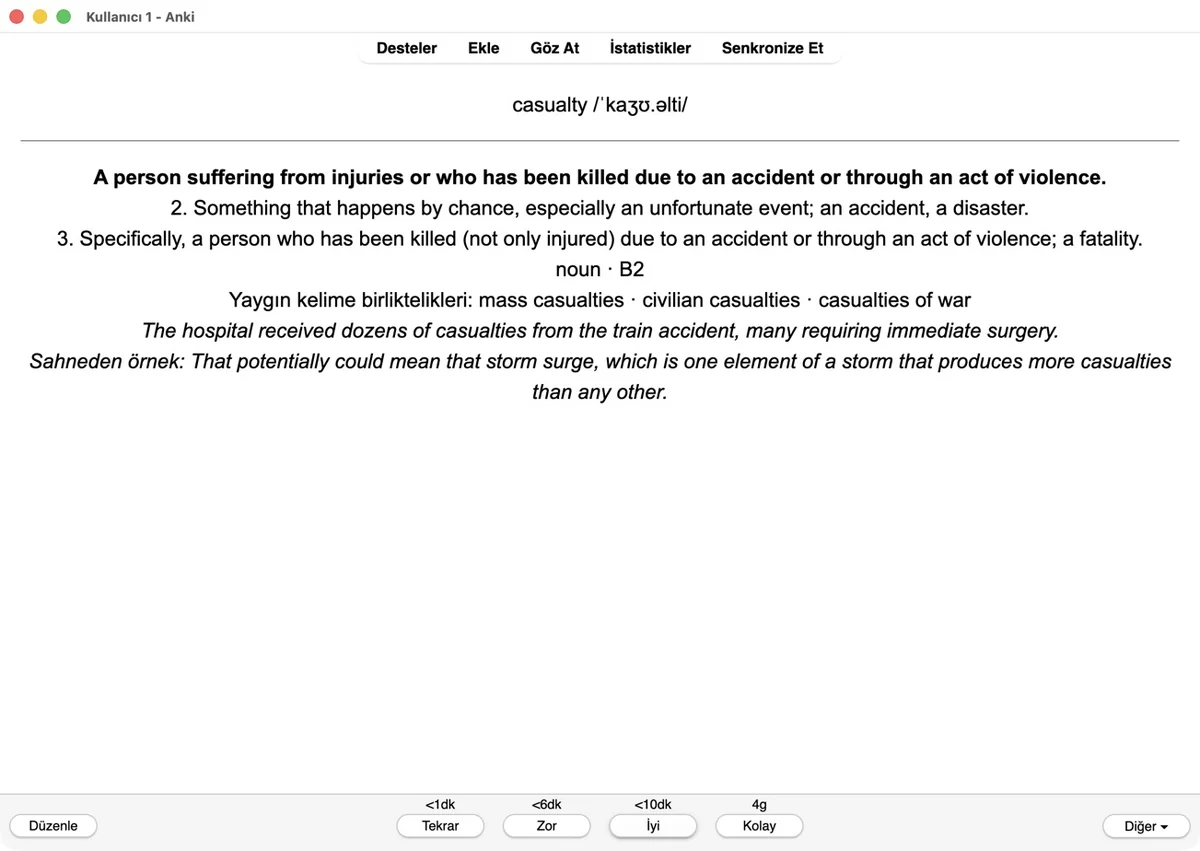
The example card comes from a list created from BBC Learning English's Climate and extreme weather video:
- Front
- casualty /ˈkaʒʊ.əlti/
- Meaning shown on the card
- A person suffering from injuries or who has been killed due to an accident or through an act of violence.
- From the scene
- “That potentially could mean that storm surge, which is one element of a storm that produces more casualties than any other.”
- Additional example
- “The hospital received dozens of casualties from the train accident, many requiring immediate surgery.”
The dictionary's second meaning is “an unfortunate event; an accident”. In the storm discussion, the word refers to people injured or killed, so the card puts that meaning first. Meaning selection is AI-assisted and can be wrong; if it does not fit, compare the scene sentence and the other meanings.
How do you study vocabulary cards in Anki?
- Open the deck. Click the deck on the main screen, then Study Now.
- Recall first. Read the word and say its meaning and a sentence you could use it in.
- Show the answer. Click Show Answer or press Space, and compare.
- Rate honestly. Choose Again if you forgot, Hard if you recalled the correct answer with difficulty, Good if you remembered with some effort and Easy if it was effortless. Keys 1–4 also work.
Anki schedules the next review from your answer and shows the interval above each button (Anki study manual). For the new card above, Again showed under 1 minute, Good under 10 minutes and Easy 4 days; the values depend on your deck options. With default settings Anki introduces 20 new cards a day, so 20 of the 21 example words appeared on day one. You can change this in the deck options.
Shared English decks are available too. Cards from content you watched remind you of the scene where you heard the word. Words you mark as known in Scenelex are left out of new lists, so they are not sent to Anki again.
Using Anki on your phone
Import on your computer, then sync the cards to your phone. According to Anki's website, the AnkiWeb sync service and AnkiDroid for Android are free, while the official iPhone app, AnkiMobile, is paid. If you prefer not to use Anki, study the same cards in Scenelex in your phone's browser; see the YouTube guide.
Can I export to Anki on the free plan?
Yes. Free includes up to 4 word lists per month within your usage allowance, with up to 50 words per list. Flashcard practice and exports to Anki, Quizlet, PDF and Word are included. You can try dictionary lookup and screenshot import once each. Longer or more complex content can use up your allowance faster. No credit card is required. Pro provides more usage and lets you go beyond 50 words per list. See the current plans and limits.
Anki import problems
- Cards show code such as <b> or <br>: Allow HTML in fields was turned off. Turn it on and import again.
- Accented characters or IPA look broken: the file may have been opened and saved in a spreadsheet app. Download it again from Scenelex and import it directly.
- No audio plays: the Scenelex export contains no audio; the cards are text-based.
Frequently asked questions
Is Anki free?
The desktop version, AnkiWeb and AnkiDroid are free; the iPhone app AnkiMobile is paid. The Scenelex Anki export is included in the Free plan.
Can I download an .apkg package from Scenelex?
No. Scenelex creates a CSV file that Anki can import. It contains no audio or video; you choose the note type and deck while importing.
Are the meanings translated?
No. Meanings and example sentences are in English, so you learn each word with an English definition. Labels such as “From the scene” follow your interface language.
Will words I learn in Anki be marked in Scenelex?
No, the two apps do not sync. To keep a word out of new lists, mark it as known in Scenelex.
Can I export the same cards to Quizlet?
Yes. Use Quizlet (.txt) in the export menu; see the format details in the subtitles guide.
Build an Anki deck from what you watch
Create a word list from a video with English subtitles or from text, download it as Anki (.csv) and import it.
Start freeNo credit card required. Anki export is included in the Free plan.
Related guides: Learn English with YouTube · Learn English with Netflix · Subtitles to vocabulary flashcards · All learning guides